
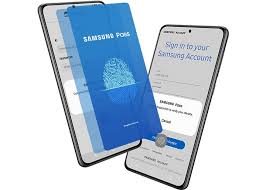
The Ultimate Guide to Samsung Password Manager Your All-in-One Key to a Safer Digital Life

In a world where we juggle dozens – sometimes hundreds – of online accounts, keeping track of strong, unique passwords can feel like herding cats. That’s exactly where the Samsung Password Manager steps in as your trusty sidekick. Built right into millions of Galaxy phones, tablets, and even some smart TVs, this free, native tool promises to make password chaos a thing of the past. Ready to ditch sticky notes and “password123”? Let’s dive deep into everything you need to know about Samsung Password Manager.
What Exactly Is Samsung Password Manager?
At its core, the Samsung Password Manager is a secure vault developed by Samsung and powered by Samsung Knox – the same defense-grade security platform trusted by governments and enterprises worldwide. Better yet, it’s completely integrated into Samsung Galaxy devices running One UI 3.1 and newer (so basically every flagship and mid-range phone since 2021).
Think of it as Apple’s iCloud Keychain, but for the Android side of the fence – only with a few extra Galaxy-flavored tricks up its sleeve.
Why Millions of People Are Switching to Samsung Password Manager
Let’s be real: third-party password managers like LastPass, Bitwarden, or 1Password are fantastic, but they often require extra apps, subscriptions, and a bit of tech savvy. Samsung Password Manager sweeps all that hassle away because:
- It’s 100 % free – no subscriptions, no “pro” tiers.
- It’s already there – no downloads needed.
- It works seamlessly across Samsung Internet, Chrome (via Auto-fill with Samsung Pass), apps, and websites.
- It’s protected by Knox, biometric locks (fingerprint, face, iris), and hardware-backed encryption.
In short, it gives you enterprise-level protection without making you jump through hoops.
How to Set Up Samsung Password Manager in Under Two Minutes
Getting started is ridiculously easy. Here’s the step-by-step:
- Open Settings → Biometrics and security → Samsung Pass (or directly search “Autofill service”).
- Tap Autofill service → choose Samsung Pass.
- Verify your identity with fingerprint, face, or PIN.
- Grant the necessary permissions – that’s it!
Boom! Your Galaxy is now ready to save and autofill passwords like a pro.
Where Your Passwords Actually Live (and Why They’re Safe)
You might be wondering, “Where on earth are my passwords stored?” Great question.
Samsung uses a combination of:
- On-device encrypted storage (most passwords never leave your phone)
- Optional cloud sync through your Samsung account (end-to-end encrypted)
- The ultra-secure Knox Vault – a physically isolated processor that even survives if someone tries to extract the chip
Even if someone steals your phone and somehow cracks your lock screen (extremely unlikely), they still can’t get your passwords without your biometric data or Samsung account credentials.
Using Samsung Password Manager with Chrome and Third-Party Apps
One of the coolest upgrades in recent years? Samsung finally made nice with Google Chrome.
Here’s how it works now:
- Install the Samsung Pass extension from the Chrome Web Store (desktop) or enable it in Chrome mobile settings.
- Sign in with the same Samsung account.
- Enjoy seamless autofill across Galaxy phones, tablets, Windows PCs (via Samsung Internet or Chrome), and even some Galaxy Books.
Yes, you read that right – your passwords can now travel from your Galaxy S24 to your Windows laptop without paying for a third-party service.
Checking and Managing Saved Passwords
Want to see what’s actually saved? Just head to:
Settings → Biometrics and security → Samsung Pass → Passwords
You’ll see a clean list where you can:
- View (after biometric verification)
- Edit
- Delete
- Export (encrypted .csv – useful for migrating to another manager later)
Pro tip: Regularly audit old or weak passwords – Samsung will even flag compromised ones if they appear in known data breaches.
Passkeys: The Password-Killing Future Built Into Samsung Password Manager
Here’s where things get really exciting. Samsung was one of the first manufacturers to fully embrace passkeys – the new industry standard that replaces passwords entirely with cryptographic keys tied to your fingerprint or face.
When a website or app supports passkeys (think Google, PayPal, eBay, GitHub, etc.), Samsung Password Manager will:
- Prompt you to create a passkey instead of a password
- Store it securely in the Knox Vault
- Log you in instantly with just a fingerprint – no typing, no phishing possible
By late 2025, thousands of major sites already support passkeys, and the list grows weekly.
Sharing Passwords Securely with Family and Friends
Need to share a Netflix or Wi-Fi password without texting it in plain sight? Samsung makes it painless:
- Open Samsung Pass → Passwords → Select entry → Share
- Choose AirDrop-style nearby share or generate a time-limited QR code
- The recipient scans and imports directly into their own Samsung Pass
No more “What’s the Wi-Fi again?” group chat spam.
The Limitations You Should Know About (Honesty Is the Best Policy)
No solution is perfect, and Samsung Password Manager has a few honest limitations:
| Feature | Samsung Password Manager | Typical Third-Party Managers |
| Works on non-Samsung devices? | No (except Windows via extension) | Yes (most) |
| Password generator customization | Basic | Advanced (length, characters) |
| Secure notes / TOTP 2FA codes | Limited / No | Yes |
| Emergency access / inheritance | Not available | Yes (some) |
| Breach monitoring alerts | Basic | Advanced |
If you live entirely in the Samsung/Galaxy ecosystem, these gaps barely matter. If you switch between iPhone, Mac, and Android frequently, a cross-platform manager might still be better.
Tips and Tricks to Get the Most Out of Samsung Password Manager
Want to level-up your experience? Try these:
- Enable “Sign in with passkey” everywhere possible – it’s faster and safer.
- Turn on “Auto save” and “Auto sign-in” for one-tap logins.
- Use the built-in password generator every time you create a new account.
- Pair it with Samsung Wallet for seamless payment + login flows.
- Regularly update your device – Samsung pushes new security features monthly.
Samsung Password Manager vs. Google Password Manager: The Showdown
Both are free, both are built-in, but they’re not the same beast.
| Feature | Samsung Password Manager | Google Password Manager |
| Encryption & security | Knox Vault + biometric | Google’s cloud |
| Passkey support | Excellent, first-class | Excellent |
| Sync across non-Samsung devices | Limited (Windows only) | Everywhere Google runs |
| Biometric-only access | Yes | No (can use screen lock) |
| Breach alerts | Yes | Yes |
Verdict? If you’re deep in the Galaxy ecosystem, Samsung Password Manager usually feels snappier and more private. If you bounce between brands, Google might win.
The Bright Future Ahead
Samsung keeps pouring resources into its password manager. At Samsung Developer Conference 2025, they teased:
- Full TOTP (2FA code) support coming in One UI 8
- Family sharing vault (like Apple’s family passwords)
- Desktop app for Windows and macOS
- Deeper Microsoft and Google collaboration
In other words, what’s already great is about to get even better.
Final Thoughts: Is Samsung Password Manager Right for You?
After years of testing every password manager under the sun, here’s my honest take: for the vast majority of Galaxy users, Samsung Password Manager is not just “good enough” – it’s genuinely one of the best options available in 2025, especially when you factor in that it’s free and ridiculously convenient.
It won’t replace a hardcore Bitwarden power user setup, but for 95 % of people? It eliminates the biggest barriers to good password hygiene: complexity and cost.
So if you own a Samsung Galaxy phone or tablet, do yourself a favor – fire up Samsung Password Manager today. Your future self (the one who never gets locked out or hacked) will thank you.
The Ultimate Guide to Samsung Password Manager: Your All-in-One Key to a Safer Digital Life
In a world where we juggle dozens – sometimes hundreds – of online accounts, keeping track of strong, unique passwords can feel like herding cats. That’s exactly where the Samsung Password Manager steps in as your trusty sidekick. Built right into millions of Galaxy phones, tablets, and even some smart TVs, this free, native tool promises to make password chaos a thing of the past. Ready to ditch sticky notes and “password123”? Let’s dive deep into everything you need to know about Samsung Password Manager.
What Exactly Is Samsung Password Manager?
At its core, the Samsung Password Manager is a secure vault developed by Samsung and powered by Samsung Knox – the same defense-grade security platform trusted by governments and enterprises worldwide. Better yet, it’s completely integrated into Samsung Galaxy devices running One UI 3.1 and newer (so basically every flagship and mid-range phone since 2021).
Think of it as Apple’s iCloud Keychain, but for the Android side of the fence – only with a few extra Galaxy-flavored tricks up its sleeve.
Why Millions of People Are Switching to Samsung Password Manager
Let’s be real: third-party password managers like LastPass, Bitwarden, or 1Password are fantastic, but they often require extra apps, subscriptions, and a bit of tech savvy. Samsung Password Manager sweeps all that hassle away because:
- It’s 100 % free – no subscriptions, no “pro” tiers.
- It’s already there – no downloads needed.
- It works seamlessly across Samsung Internet, Chrome (via Auto-fill with Samsung Pass), apps, and websites.
- It’s protected by Knox, biometric locks (fingerprint, face, iris), and hardware-backed encryption.
In short, it gives you enterprise-level protection without making you jump through hoops.
How to Set Up Samsung Password Manager in Under Two Minutes
Getting started is ridiculously easy. Here’s the step-by-step:
- Open Settings → Biometrics and security → Samsung Pass (or directly search “Autofill service”).
- Tap Autofill service → choose Samsung Pass.
- Verify your identity with fingerprint, face, or PIN.
- Grant the necessary permissions – that’s it!
Boom! Your Galaxy is now ready to save and autofill passwords like a pro.
Where Your Passwords Actually Live (and Why They’re Safe)
You might be wondering, “Where on earth are my passwords stored?” Great question.
Samsung uses a combination of:
- On-device encrypted storage (most passwords never leave your phone)
- Optional cloud sync through your Samsung account (end-to-end encrypted)
- The ultra-secure Knox Vault – a physically isolated processor that even survives if someone tries to extract the chip
Even if someone steals your phone and somehow cracks your lock screen (extremely unlikely), they still can’t get your passwords without your biometric data or Samsung account credentials.
Using Samsung Password Manager with Chrome and Third-Party Apps
One of the coolest upgrades in recent years? Samsung finally made nice with Google Chrome.
Here’s how it works now:
- Install the Samsung Pass extension from the Chrome Web Store (desktop) or enable it in Chrome mobile settings.
- Sign in with the same Samsung account.
- Enjoy seamless autofill across Galaxy phones, tablets, Windows PCs (via Samsung Internet or Chrome), and even some Galaxy Books.
Yes, you read that right – your passwords can now travel from your Galaxy S24 to your Windows laptop without paying for a third-party service.
Checking and Managing Saved Passwords
Want to see what’s actually saved? Just head to:
Settings → Biometrics and security → Samsung Pass → Passwords
You’ll see a clean list where you can:
- View (after biometric verification)
- Edit
- Delete
- Export (encrypted .csv – useful for migrating to another manager later)
Pro tip: Regularly audit old or weak passwords – Samsung will even flag compromised ones if they appear in known data breaches.
Passkeys: The Password-Killing Future Built Into Samsung Password Manager
Here’s where things get really exciting. Samsung was one of the first manufacturers to fully embrace passkeys – the new industry standard that replaces passwords entirely with cryptographic keys tied to your fingerprint or face.
When a website or app supports passkeys (think Google, PayPal, eBay, GitHub, etc.), Samsung Password Manager will:
- Prompt you to create a passkey instead of a password
- Store it securely in the Knox Vault
- Log you in instantly with just a fingerprint – no typing, no phishing possible
By late 2025, thousands of major sites already support passkeys, and the list grows weekly.
Sharing Passwords Securely with Family and Friends
Need to share a Netflix or Wi-Fi password without texting it in plain sight? Samsung makes it painless:
- Open Samsung Pass → Passwords → Select entry → Share
- Choose AirDrop-style nearby share or generate a time-limited QR code
- The recipient scans and imports directly into their own Samsung Pass
No more “What’s the Wi-Fi again?” group chat spam.
The Limitations You Should Know About (Honesty Is the Best Policy)
No solution is perfect, and Samsung Password Manager has a few honest limitations:
| Feature | Samsung Password Manager | Typical Third-Party Managers |
| Works on non-Samsung devices? | No (except Windows via extension) | Yes (most) |
| Password generator customization | Basic | Advanced (length, characters) |
| Secure notes / TOTP 2FA codes | Limited / No | Yes |
| Emergency access / inheritance | Not available | Yes (some) |
| Breach monitoring alerts | Basic | Advanced |
If you live entirely in the Samsung/Galaxy ecosystem, these gaps barely matter. If you switch between iPhone, Mac, and Android frequently, a cross-platform manager might still be better.
Tips and Tricks to Get the Most Out of Samsung Password Manager
Want to level-up your experience? Try these:
- Enable “Sign in with passkey” everywhere possible – it’s faster and safer.
- Turn on “Auto save” and “Auto sign-in” for one-tap logins.
- Use the built-in password generator every time you create a new account.
- Pair it with Samsung Wallet for seamless payment + login flows.
- Regularly update your device – Samsung pushes new security features monthly.
Samsung Password Manager vs. Google Password Manager: The Showdown
Both are free, both are built-in, but they’re not the same beast.
| Feature | Samsung Password Manager | Google Password Manager |
| Encryption & security | Knox Vault + biometric | Google’s cloud |
| Passkey support | Excellent, first-class | Excellent |
| Sync across non-Samsung devices | Limited (Windows only) | Everywhere Google runs |
| Biometric-only access | Yes | No (can use screen lock) |
| Breach alerts | Yes | Yes |
Verdict? If you’re deep in the Galaxy ecosystem, Samsung Password Manager usually feels snappier and more private. If you bounce between brands, Google might win.
The Bright Future Ahead
Samsung keeps pouring resources into its password manager. At Samsung Developer Conference 2025, they teased:
- Full TOTP (2FA code) support coming in One UI 8
- Family sharing vault (like Apple’s family passwords)
- Desktop app for Windows and macOS
- Deeper Microsoft and Google collaboration
In other words, what’s already great is about to get even better.
Conclusion
After years of testing every password manager under the sun, here’s my honest take: for the vast majority of Galaxy users, Samsung Password Manager is not just “good enough” – it’s genuinely one of the best options available in 2025, especially when you factor in that it’s free and ridiculously convenient.
It won’t replace a hardcore Bitwarden power user setup, but for 95 % of people? It eliminates the biggest barriers to good password hygiene: complexity and cost.
So if you own a Samsung Galaxy phone or tablet, do yourself a favor – fire up Samsung Password Manager today. Your future self (the one who never gets locked out or hacked) will thank you.